FUME – A Better Confluence User Macro Editor
One of the best and most overlooked aspects of Confluence, both by Atlassian and Confluence administrators, is user macros. There are so many useful scenarios for user macros. Here are some:
- Templated snippets
- Overriding built in macros example with task list report
- Quickly creating your own macros
- Inserting arbitrary html/css/javascript into a page without having to enabled the html macro
However, there are some big usability issues with the user macro editor. First it’s super easy to accidentally delete one. The delete link is right next to the edit link and seriously, there is no confirmation on the delete link. It’s just gone. Ack!
Second, the link to create new user macros is at the bottom of the page. If you have more that what can fit on a screen you have to scroll down to get to the link to create a new one … this just gets worse over time as you create more.
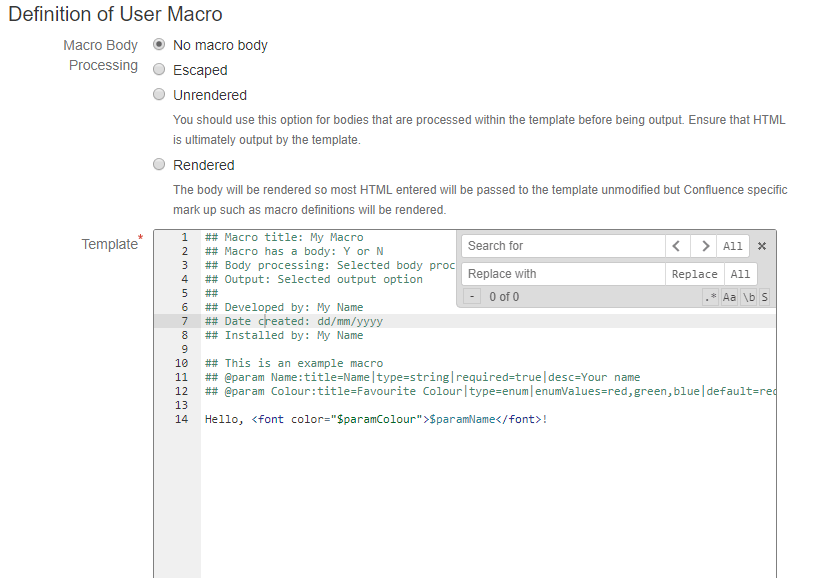
Third, the template box in the editor is just a plain old text area … no line numbers, not syntax highlighting, it’s not even a mono-spaced font! Grr!
Fourth, the cancel button doesn’t ask you to confirm canceling the edit if you have made changes to the user macro and since it sits right next to the save button it’s easy to miss. Hope you can recreate your work quickly.
Finally, every time you save it kicks you back to the list page. So, if you want to make some changes and try it out on a page you have to click back into the editor every time you save and whoops you accidentally just clicked delete instead of edit! There goes all that work.
So, without further ado … FUME. Fantastic user macro editor. The fantastic part is really just because I needed a word that ended in “ume” and that was the only word I could think of. Really it’s not all that fantastic … maybe just great, but gume isn’t even a word. Then I thought “How about great looking user macro editor”, but that would be glume and … well … yeah, that kinda defeats the purpose. So, FUME it is. All in all I think it is a much better editing experience than the default setup. Here are some of the features:
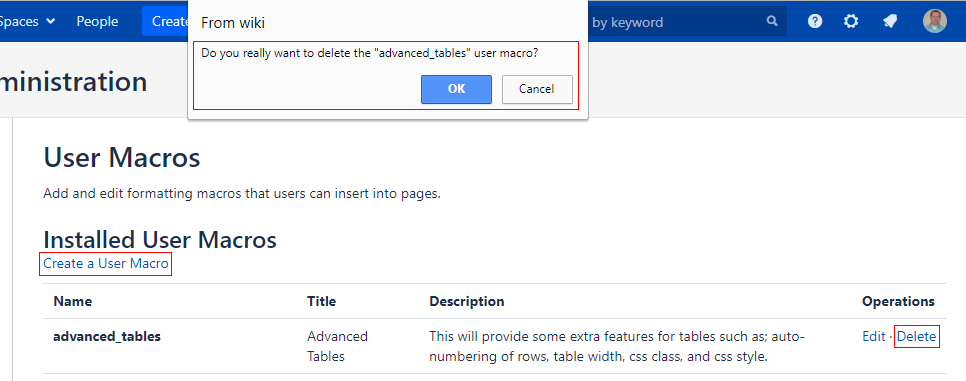
- Copy that “Create a User Macro” link to the top of the list page … no more scrolling
- Delete confirmation on the list page
- Template box changed to a source code editor with (Ace editor):
- monospaced font
- line numbers
- syntax highlighting
- find and replace
- code folding
- column select
- Confirmation on cancelling edits of the user macro if the template has been changed
- Asynchronous user macro saves
- It will do your dishes and laundry … ok, not quite yet
Update 4/9/2018:
Ignore the “How to Setup” section below. I’ll leave it there, however, for the sake of continuity. I decided to package this up as an add-on in the Atlassian Marketplace. I named it Enhanced User Macro Editor (EUME … pronounced you-me … it’s a stretch I know). It seemed a bit more humble of a name and is more descriptive of what it is. I hope it is as useful for you as it has been for me. Marketplace link below.
How to Setup
- Download these CSS and Javascript files. (right click the links and choose “Save link as”)
- Place them on a web server where they will be web accessible to your user macro editors.
- Add this to the end of Confluence Admin -> Custom HTML -> At end of the BODY
<!--
*****************************************
* Fantastic User Macro Editor           * *****************************************
-->
<link rel="stylesheet" type="text/css" href="http(s)://{your server}/path/to/fume.css">
<script src="http(s)://{your server}/path/to/fume.js" type="text/javascript"></script>
- Enjoy editing your user macros. 🙂
Screenshots
User Macro List
User Macro Template Editor

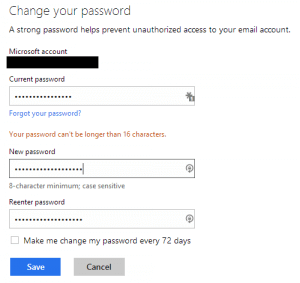 I went to my account and put in a pass phrase that seems pretty decent to me. Here is the first message I got. It seems that my nineteen character passphrase is too long. Why is this an issue I ask? Why does Microsoft care if I want to have a long password? If I want to take on the burden of typing those extra characters what is it to them? This is not a limitation with any other Microsoft system I have ever used (personal machine and work machines). I’m sure their own systems are based on their own stack, so this is an artificial limit that they have put in that has no real value except to make my account easier to hack.
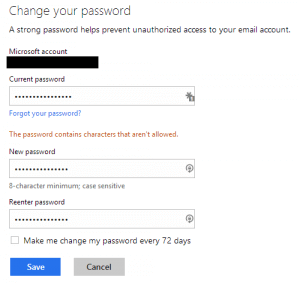 Ok, since I can only have up to sixteen characters in my password I guess I’ll have to comply. Sixteen characters is still pretty long right? So, I swapped out some words and made a few tweaks only to be presented with this. REALLY!? By the way, the character that they do not like is a space. So, I thought I would see what characters they do allow. They allow A-Z, a-z, 0-9, and every special character printed on your keyboard … just not space. Ugh!! It seems they are going out of their way to discourage pass phrases when it has been shown
  Small disclaimer: this works great on my setup. I have not tested it outside of my setup. It should work just fine as I am using the standard API’s that come with Confluence, but it is an open source project and I’m not getting paid for it, so I haven’t done extensive testing in all scenarios.
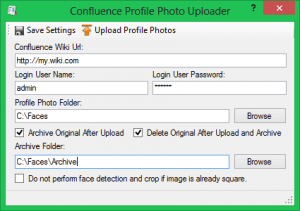 Because of this I decided to write a utility that allows an administrator to sweep in photos in a specified folder with a file mask of “%username%.%extension%” into Confluence. The utility will accept .jpg, .jpeg, .tif, .tiff, .png, and .bmp files. Optionally, you can specify a folder to archive the swept-in photos to after they have been uploaded. Confluence profile photos are 48×48 pixels and since most photos are not square the utility will attempt to do face detection and crop the photo to the largest face in the photo. If the photo is already square you can opt to have the utility not perform the face detection. I am personally not smart enough to write face detection algorithms, so I am using